As an approver, you need to review and approve trip requests for employees assigned to you. You can also edit the billing details for the trip.
For information about approvals for changes to trips, see Manage approvals for changes to booked trips.
Approval notifications
You’ll be notified about any approval requests by email and on Perk.
If you have the Perk app and notifications are enabled, you'll also be notified on your mobile device. For more information, see Approve trips on the Perk app.
If you have the Slack or Microsoft Teams integration enabled, you'll also be notified on Slack or Teams.
You'll receive an approval request in your email inbox.
Perk website
On the Trips page, you can see any pending approval requests in the Needs action tab.
Perk app
You'll receive a push notification that will take you to the approval page on the app.
You'll also receive a notification when you open the Perk app. Press the Bell symbol in the top right corner to see your notifications.
Slack
You'll receive a notification in the Apps section. Select the Perk app to see the request.
Microsoft Teams
You'll receive a notification in the Perk app on Teams.
Reviewing and approve a trip
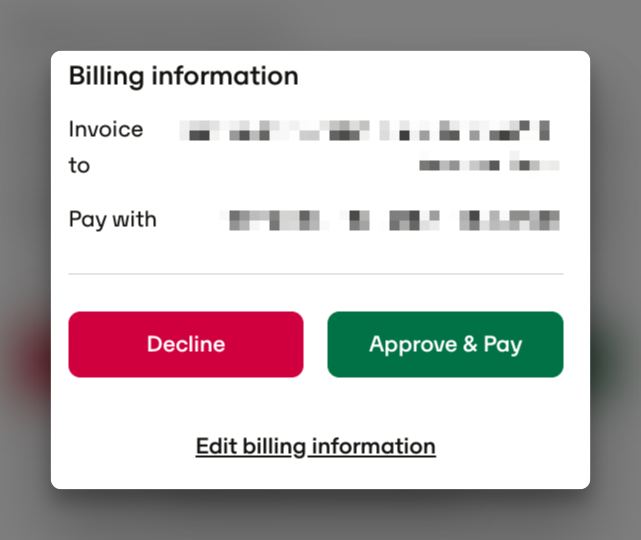
- If there are issues with the requested trip, click Decline and leave a comment for the requester.
- If there are no issues, click Approve.
Perk website
Perk app
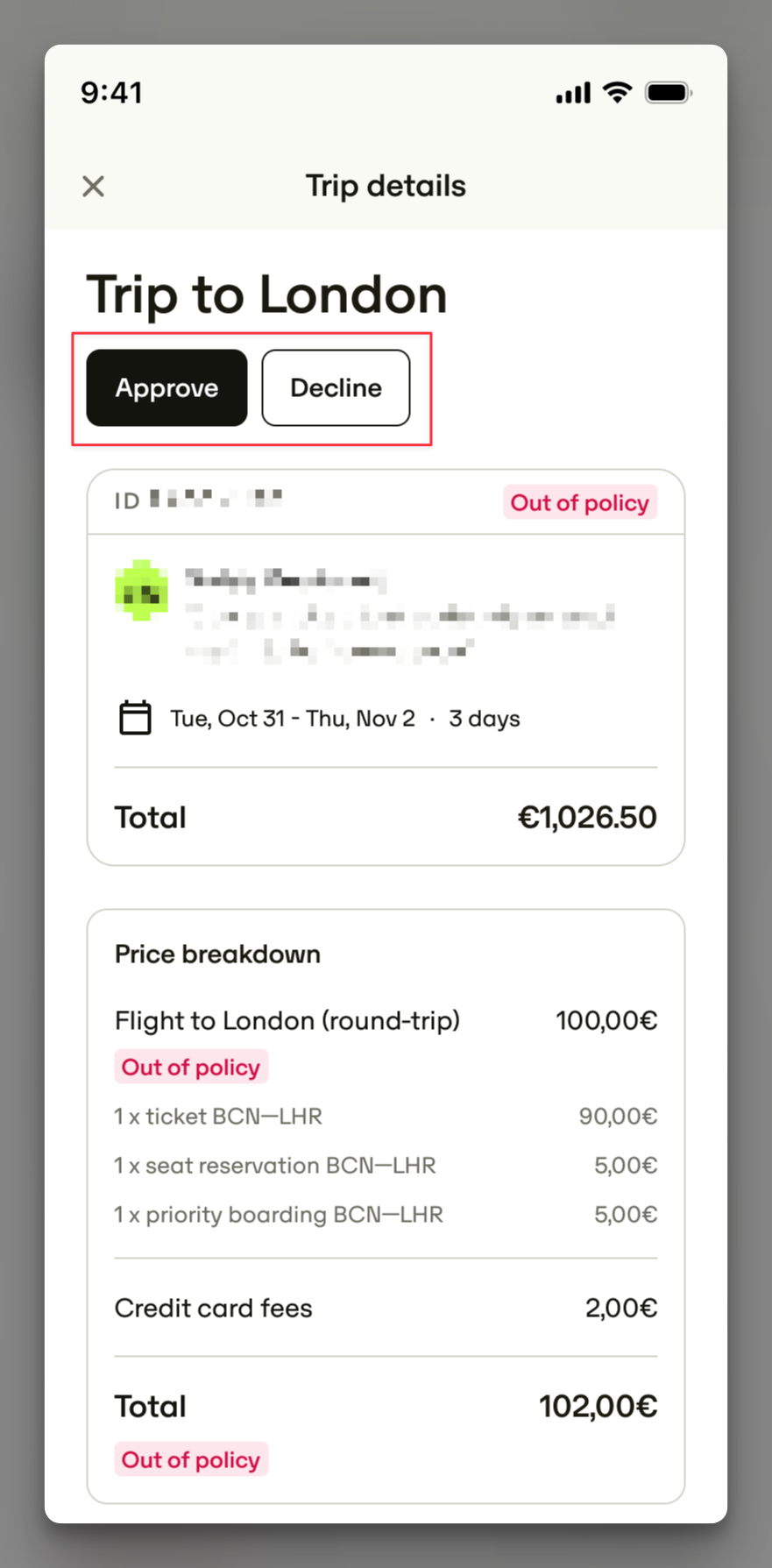
Once all required approvals are complete, the trip will be booked and the traveler notified.
If you are going to be out of the office, you can choose who will manage your approval requests while you're away. For more information, see Turn on out-of-office approvals.
You can also use Line manager approvals to make your approval processes easier, see Assign a line manager as an approver.